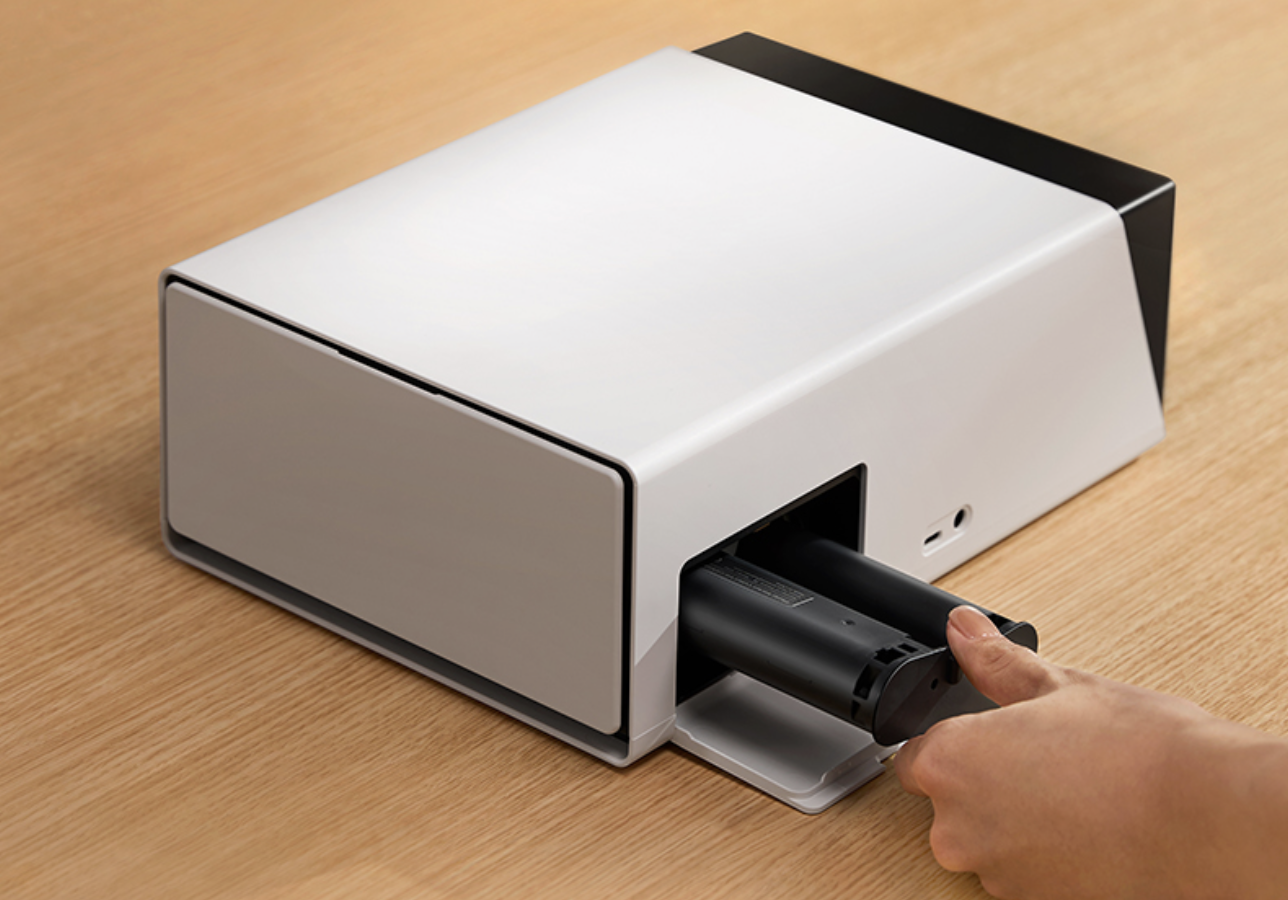
In this article I am going to explore the best selling Liene PixCute S1 Features and review the machine.
If you’re into crafting, custom labeling, or just want to create fun personalized gifts, the Liene PixCut S1 Color Sticker Printer & Cutting Machine is worth checking out.
This all-in-one machine puts both a photo-quality color sticker printer and an AI-powered cutting tool together, which makes it pretty handy for all sorts of DIY projects, home organizers, and even small businesses.
Liene isn’t a newbie to the print scene either; they’ve been developing photo printers for a while, so I was excited to see how this combo unit performs, especially with all the talk about precise auto-cutting and thermal dye-sublimation printing.
Here’s a quick summary of what you can expect from the Liene PixCut S1 Features, then I’ll get into the nitty-gritty with my experiences, favorite features, and why this machine can be a game-changer for creators and home hobbyists.
This article contains affiliate links, which means that the owner of this website will receive commissions on qualifying purchases, at no extra cost to the buyer.
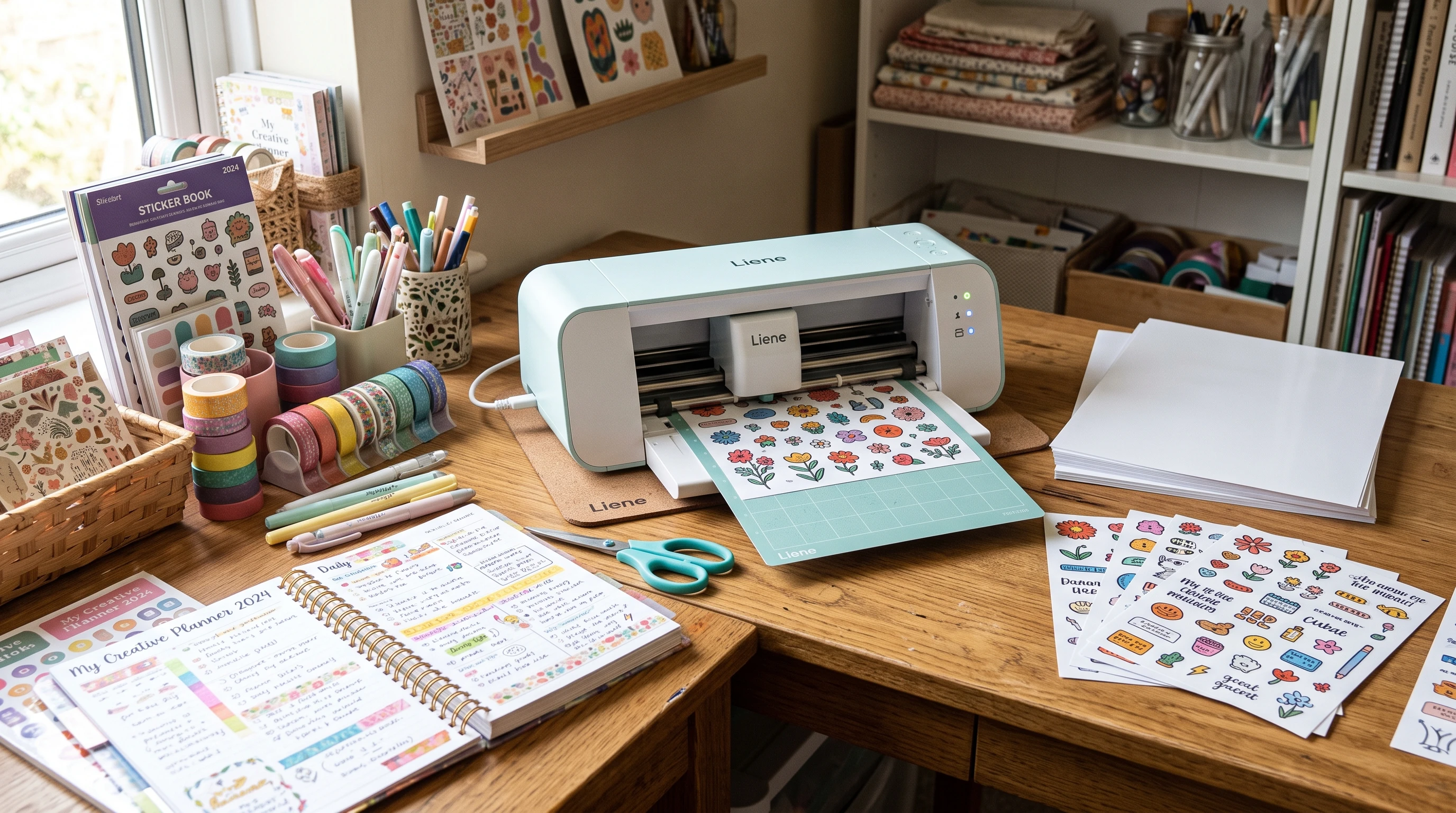
Liene PixCut S1 Color Sticker Printer & Cutting Machine
Product Type: All-in-one sticker/photo label printer and auto-cutting machine
Printing Technology: Thermal dye-sublimation (no ink cartridges needed)
Resolution: 300 DPI Full Color Print
Cutting Precision: Advanced AI auto-cutting, supports irregular shapes
Supported Materials: Stickers, labels, photo paper, and more
App Compatibility: iOS, Android, and Windows
Who It’s For: DIYers, crafters, small shop owners, organization lovers
Overall Rating: 4.8/5
Warranty: 12 months
Free Sample Pack: Yes. The machine includes sample sticker sheets with purchase
Liene PixCut S1 brings together a full-color, borderless dye-sub sticker printer and a precision cutter in one compact machine. With its easy app setup, you’ll be making custom stickers in a couple of minutes, and the cutter uses AI alignment, so you don’t have to mess around with manual settings or calibration.
Everything comes out looking like it’s straight from a professional print shop. If you find regular sticker pens or label printers limited, but don’t want the price or learning curve of a traditional die-cutter, this gadget does a lot of heavy lifting for you.
The PixCut S1 really opens up sticker making to beginners and takes the frustration out of cutting shapes by hand. If you’ve tried those craft scissors or manual punch-out cutters, you know what a hassle precise shapes can be.
Watching the S1 cut around your design perfectly never gets old, and since it’s thermal dye-sub, there’s no ink to dry out, spill, or replace.
Getting to Know Liene: A Little Brand Background
Liene has been designing personal and photo printers for a few years now, usually with a focus on portability and smart app features. The PixCut S1 is their most ambitious attempt yet; a machine that gives regular folks access to pro-level cutting and beautiful color prints in one affordable package. I’ve previously used the Liene 4×6 photo printers for making quick family albums, so when they rolled out this hybrid for stickers and DIY crafts, I was all in.
I appreciate how the brand listens to their community. There’s a pretty active group of Liene users online who share sample ideas, troubleshooting tips, and creative hacks.
Liene’s support team is actually responsive, too. I had a setup question on my first day and got an answer by email within a couple of hours. Support that actually gets back to you is a bit of a rarity these days, especially for gadgets in this price range.
Liene also regularly updates their app and releases new materials as the PixCut S1 gains traction. Features like AI edge-detect and support for dieless cutting (meaning no physical dies or templates needed, just your digital design) definitely came from feedback and requests posted by other users.
What Can You Do With the Liene PixCut S1?
This thing isn’t just a sticker printer; it can handle a bunch of creative jobs. Here’s what I use it for, and what I’ve seen others do:
- Custom planner stickers, labels for jars, cables, and pantry containers
- Personalized gifts (photo stickers, party favors, baby shower sets)
- Branding supplies (handmade shop logo stickers, product labels)
- Scrapbooking, art journaling, mood boards, birthday cards
- Classroom stuff, like name tags, awards, or learning tools for teachers
- Kids’ projects, fun sticker sets, custom reward badges, book labels
The print and cutter really shines with detailed shapes, like clouds or script fonts. You just snap a photo of your design, upload it via the Liene app, and it automatically finds the cut line even for irregular, curvy shapes. If you want traditional circles, hearts, rectangles, or even your own hand-drawn outline, it handles those too. No more wonky edge cutting or wasting sticker sheets because manual trimming went sideways!
Liene PixCut S1 Features and Tech Specs That Stand Out
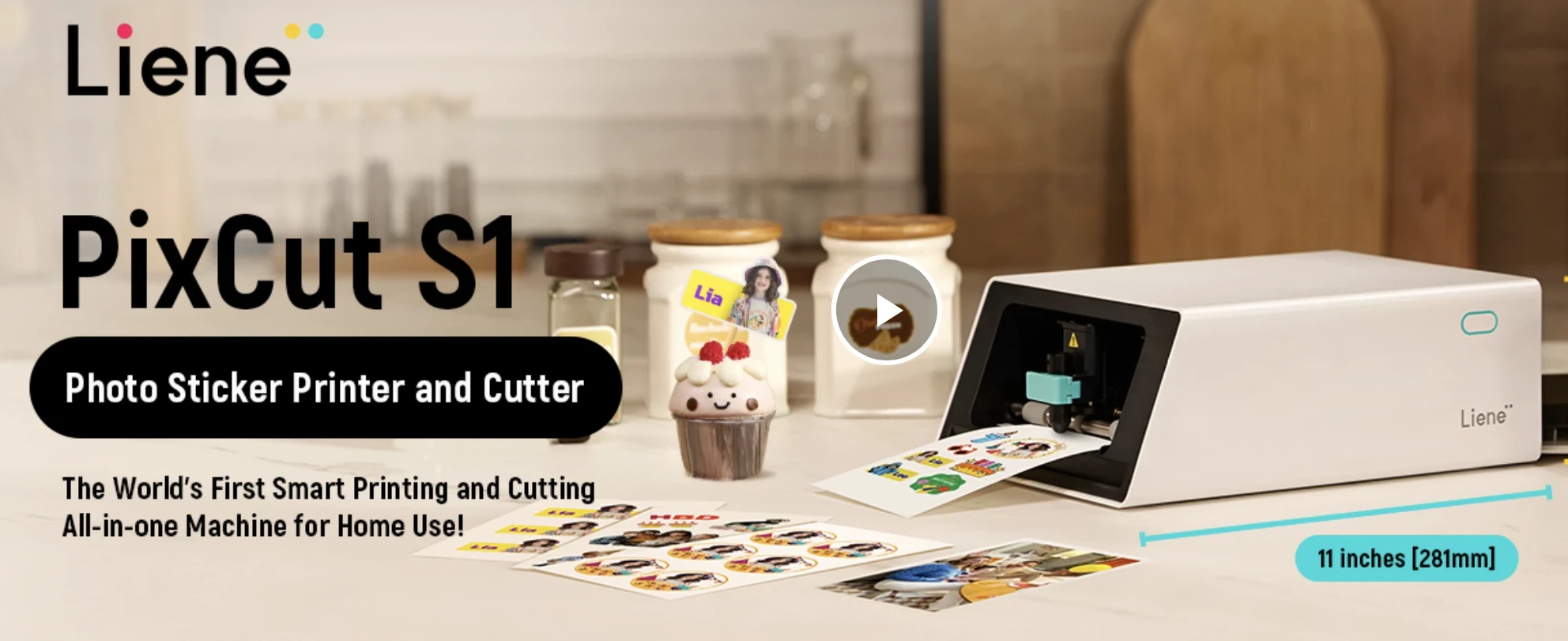
This printer is packed with features, and some of them are pretty unique for this category. Here are the ones I think you’ll really like:
300 DPI Thermal Dye-Sublimation Printing
The dye-sub tech means every color blends smooth and photos come out with rich, saturated tones. I notice a huge difference between this and most thermal, black and white label makers. Text is super sharp at 300 DPI, and the full-color range is awesome for photos, cute icons, and even watercolor style illustrations.
Since it’s a dye-sub unit, you don’t mess with liquid ink or toner cartridges. Instead, the S1 uses a color ribbon embedded in the sticker paper cassettes. Printing is dry to the touch instantly, and there’s no risk of smearing or fading over time. If you keep your stickers on water bottles or notebooks that get knocked around, you’ll appreciate how durable the dye-sublimation finish really is.
AI-Powered Auto-Cutting, Even for Custom or Irregular Shapes
The pairing of a smart cutter with your printer is where the S1 pulls ahead of regular consumer photo printers. You just upload your design (it can be a scanned doodle, a saved PNG, or something you made in Canva), and the PixCut app detects the edges and generates the cut path automatically. The cut is super precise, down to about 0.1 mm. I’ve tested it with thin cursive text, intricate flowers, and even simple QR codes, and it handled all of them really well.
The built-in automatic alignment system checks every sheet before cutting, so you don’t have to manually line up registration marks or adjust for drift. I’ve noticed much less wastage compared to my old manual cutters, especially for small stickers or multishape layouts on a single page.
Companion App With Templates, Customization, and Seamless Connectivity
Liene’s free app gets you set up in under five minutes; Bluetooth connection is quick, and you don’t need a WiFi network. The app has a gallery of templates (labels, icons, planner shapes) if you want to skip the custom design process. But if you want something totally unique, you can import your images, use the in-app background remover, or draw/outline directly in the editor.
I like that the app doesn’t stuff your phone with ads or pushy upgrades. It’s clean, pretty intuitive, and works both on Android and iOS. You can save your projects for future batches or share finished stickers with friends if they have a S1 too.
Easy Refill Sticker Sheets and a Variety of Materials
The S1 bundle comes with a starter pack of sticker sheets. Refills are easy to find on Amazon or through Liene’s own store. You get a choice of glossy white, matte, transparent, and even metallic sticker paper. All use the special dye-sublimation ribbon, so no mixups or jams happening mid-project.
If you like to experiment, you can swap between label sized, photo sized, or fun shaped sheets in seconds. I usually keep a stack of glossy and transparent sheets handy; I find the transparent ones perfect for bumper stickers and anything that needs to blend in with surfaces. The paper has a nice feel, not too thin, not so thick it jams the unit. Peel and stick backing saves time, too.
Reliable Print Experience, No Ink Smudging or Guesswork
One thing I love here is how consistent every sheet comes out, front to back. With no ink to get streaky or dry up, you don’t have those annoying test prints or wasted first sheets you see with regular inkjets. The machine has a built-in self-calibration routine every so often, so print alignment always matches the cut. That consistency is super important if you’re making sticker packs for sale, branding that needs to be spot on, or just want to avoid frustration with mismatched prints and cuts.
Who Will Love the Liene PixCut S1?
You don’t need to be a pro designer to get the most from the S1. If you answer ‘yes’ to any of these, it’s probably worth a try:
- You love personalizing planners, journals, or gifts
- You run a small business and want better branding (including logo stickers or product labels)
- You help in classrooms, sports groups, or community events that use custom labels
- Your kids are obsessed with stickers
- You’re tired of paying for custom stickers online that never turn out just right
- You want a print and cut solution that’s way easier than traditional die-cut craft machines
If you already have a traditional Cricut or Silhouette, you’ll notice the Liene S1 is faster for sticker specific jobs. No mats or blade swaps to deal with, and the app workflow is a lot more beginner friendly. But hardcore card makers or vinyl sign artists may want to keep their pro tools around for heavy duty jobs. For most sticker and label needs, this printer cutter handles 95% of tasks without the usual drama.
Getting Started: Setup and Everyday Use
I found the entire setup process refreshingly quick. Out of the box, the PixCut S1 comes with a power cord, sample materials/ribbon, and a simple guide. Here’s how it went for me:
- Plug in and turn on the printer (power button on top, takes 3 seconds to boot)
- Load the ribbon cassette and your starter sticker sheet (the app walks you through this)
- Install the Liene app from Google Play or App Store, then pair via Bluetooth
- Design or import your sticker project on your phone/tablet
- Hit print, and the app automatically sends the job over and triggers the cut run
The first print-cut job took under eight minutes from sealed box to a sticker in my hand. Once I was familiar, print jobs were cranked out in three minutes or less. There’s literally no learning curve beyond arranging your design on the app and letting the S1 do its thing.
Cleanup is simple, too. Used ribbons and sticker sheet scraps drop right in the recycling bin; nothing sticky left over. There’s even a slot for output sheets, so your finished stickers don’t slide everywhere. The device doesn’t take up much space on my desk (about the size of a loaf of bread) and is light enough to move to another room if needed.
How Long Do Ribbons and Sticker Sheets Last?
Each refill set comes with a ribbon matched to a number of sticker sheets (usually a 20 sheet pack). On average, one refill covers about 120–200 separate stickers, depending on how much of each sheet you use. Price per sticker is way cheaper than ordering custom labels or photo stickers online. If you only print occasionally, these consumables last for months at my house. Businesses or heavy crafters will want to stock a backup pack or two just in case.
App Walkthrough: Editing and Customization
The Liene app is where most of the magic happens. You get a bunch of options, whether you want to whip up something quick from built-in templates or get really involved with design. Here’s a look at what the editor offers:
- Sticker templates: Shapes, banners, logos, address labels, icon packs
- Text tools: Tons of fonts, colors, shadow, outline, and curve tools
- Photo import: Bring in images from your gallery, scan a doodle or art, or use stickers from third party apps (PNG with transparent backgrounds works best)
- Background remover: The built-in AI is good at clipping out backgrounds to turn photos into sticker die cuts
- Editing: You can rotate, mirror, resize, and layer elements with a drag and drop interface
- Batch layout: Arrange multiple mini stickers on one sheet, great for planner packs or custom sets
- Cut path: Preview auto-cut lines or adjust manual traces for super custom shapes
Once your project is ready, just tap ‘print and cut’—the app sends the job wirelessly to the S1, and the cutter follows the design perfectly. There’s an option to save projects as templates for future edits, which is handy if you’re repeating sticker batches often.
Dye-Sublimation: Why It’s a Big Deal for Stickers
Traditional sticker printers use inkjet or thermal direct printing, which can fade, run, or smudge if you get them wet or rub too hard. Dye-sublimation is a different game. The printer heats up the colored ribbon, turning dye into gas and infusing it into the sticker paper. This means:
- Colors are bold, photo-realistic, and long-lasting
- No drying time, no smears, ever
- Stickers are resistant to water, UV light, and rough handling
- Print quality stays consistent from the first sheet to the last in a pack
This tech used to be reserved for fancy photo labs or expensive ID card makers. Liene brings it to crafts and stickers, which is honestly a big upgrade over most consumer level printers.
Cutting Engine: What Makes It ‘AI-Powered’?
The cutter uses on-board edge-detection algorithms. When you upload your design, the system auto-scans for color, contrast, and outlines. It then creates a custom path for the cutter and double-checks alignment using built-in sensors before every job. Even if your sticker sheet goes in a bit crooked, the S1 makes the right adjustments. The cut is clean; no ragged edges, no weird stops, no halfway tears. Circular, square, complicated shapes, or script letters—it manages it all without choking.
If you want to get technical, the S1 cutter supports tolerances up to 0.1 mm, which means you can do detailed work like creating mini-logo stickers or layered die cuts. It’s not limited to simple square or round cuts like some labelers, so you’re free to get creative.
Comparing Liene PixCut S1 to Other Sticker Machines
It’s Best ForDIY stickers & photo craftsWider crafting (cards, vinyls, banners)Quick labeling, text/photo stickers only
If you’re mostly into stickers, custom labels, or small branded items, Liene’s S1 covers you from print to cut all in one place. Cricut and similar machines are better for heavy craft and pro sign-making, but you’ll need to buy or already own a color printer to do the full ‘print then cut’ workflow.
Sample Project Ideas
Here’s a peek at a few real world ways I’ve used the PixCut S1 with great success:
• Pantry and Kitchen Labels
Printed on glossy white sticker sheets with a handwritten font. The S1 cut around each label for jars, spice tins, and storage tubs. No smudging from kitchen spills and easy to peel off when I want to update dates or swap ingredients.
• Custom Birthday Goodies
For my niece’s unicorn-themed party, we made favor bags with photo stickers and rainbow cutouts. I imported a selfie, trimmed to a unicorn outline, and the app handled cut traces like magic. The finish looked as polished as something from a print shop.
• Branding Stickers for My Side Hustle
I designed my logo in Canva, saved as a transparent PNG, and imported it into the S1 app. Printed onto metallic stickers, then cut into custom shapes. Every package I send gets one and customers love the personal touch over generic plain labels.
• Classroom Rewards and Name Tags
My teacher friend uses her S1 to whip up mini animal stickers as rewards, and fun badgestyle name tags for field trips. Kids get their favorite cartoon or icon on a badge, which sticks to shirts but peels off cleanly at the end of the day. Huge win for classroom organizing.
Using the S1 for Small Business—What to Know
Sticker packs, branding labels, thank-you notes, and shipping supplies all run smoother with the PixCut S1. Here’s what I’ve learned so far using it alongside my Etsy shop and for packaging my freelance projects:
- The cost per sticker drops a lot when you maximize each sheet (batch printing multiple designs in a project)
- AI cutter accuracy is spot on, meaning your branding looks sharp and pro-level every time
- Thermal dye-sub prints don’t bleed or fade if you’re sending items that might get wet or scuffed in the mail
- The speed is awesome for last minute rush, print and cut a batch of name labels in just a few minutes before post office run
This machine doesn’t take over all my shipping label needs, but for anything meant to have staying power or to make my brand look more polished, it’s a huge timesaver and actually cheaper than ordering custom stickers every month.
Troubleshooting and Common Questions
In my time testing the S1, a few questions and concerns kept coming up in the online groups and my own experience. Here’s what’s worth knowing:
- Sticker edges are peeling up? Clean the surface before applying stickers and avoid pressing air bubbles under the edge, just like any label, that keeps them stuck flat. S1 stickers use a strong but removable adhesive.
- Cutting path looks misaligned? Run the built-in calibration in the app. This usually just takes one test print and solves it fast.
- Running out of ribbon or sheet early? Keep an eye on the app’s indication of remaining prints. It’s generally accurate, but packing too many shapes onto a single sheet can reduce the per ribbon yield a bit.
- Compatible with Windows/Mac? The printer works through the app, but Liene recently rolled out a desktop Windows interface. Mac support is in beta and improving, so check their website for latest compatibility updates if you’re a desktop user.
- Can I use third party sticker sheets? For full print/cut functionality and best durability, stick with Liene’s matched refills. The heat and cut alignment is tuned to their sheet thickness and ribbon chemistry, so third party supplies might jam or produce lower-quality results.
Refill Guide and Where to Buy
You can stock up on official Liene sticker or ribbon packs through their website, Amazon, or craft retailers. Most refill kits have enough for 120–150 stickers, depending on your layout. Refills aren’t outrageously priced, especially if you find them in multipacks. Keep an eye out for sales or bundle deals if you’re a heavy user.
S1 machines themselves often go on promo around key holidays or back-to-school time. If price is a concern, watch for coupon codes or special starter bundles with bonus materials. Liene’s own Amazon store usually has competitive pricing, plus customer reviews for troubleshooting tips before you buy.
Things I’d Love to See Improved
- I’d love more sticker sheet variety, like more colors, specialty textures, or ecofriendly/recycled options. The basics cover most needs right now though.
- Speed could be a bit faster for ultra big batches, but for home or small business use it’s totally reasonable.
- MacOS support is still in development. If you do all your design work on a Mac, there’s a bit of extra step to get things into the app vs PC or mobile.
- Adding support for more custom cut layer options (like kisscut vs diecut) would help super advanced users, but isn’t critical for regular sticker making.
What Makes the Liene PixCut S1 a Top Choice?
Easy setup, high-res photo printing, and AI cutting mean you don’t waste supplies or time, and your custom stickers look like they were made in a factory print shop. Beginners and casual hobbyists can get pro results basically right away, and business owners or teachers save time and money by making on-demand stickers at home.
Sticker-making used to be kind of a pain, but the S1’s seamless print and cut workflow just…works. With a clean desk setup, refills within reach, and your phone as a design center, there’s a ton of creative flexibility without hassle. The finished product is tough enough to use outdoors or on gear that takes a beating, so it actually goes beyond scrapbook or planner territory.
Price Point and What to Expect
The S1 typically retails between $179–$300, depending on bundle and time of year. Refills are about $9–$15 per pack. That’s a sweet spot, in my opinion; not so cheap it feels like a toy, but not so pricey that you’re anxious every time you use it. The starter kit comes with enough supplies for several projects, so you can test and learn without feeling wasteful.
Warranty is a straightforward 12-month plan. If you hit any major snags, Liene’s support is quick about repairs, swaps, or replacements. I’ve also noticed they often send out free sample materials or bonus sheets for active users who share projects or give feedback.
The Community: Sharing, Inspiration, and Learning
A quick peek on social media shows a ton of user groups sharing their sticker projects, tips, and inspiration. Whether you’re into bullet journaling, Etsy sales, or want ideas for classroom projects, there’s no shortage of creative examples. Liene spotlights top creators with free materials or instant app template uploads, which keeps things fresh.
I’ve learned everything from batch production hacks to creative sticker layering just by checking out group posts and Liene’s tutorials. This vibrant community sets the S1 apart, especially compared to some closed, non-supportive brands.
Is the Liene PixCut S1 Worth It?
If you want a compact, reliable machine that prints and cuts fantastic looking stickers, labels, and custom photo projects, the PixCut S1 hits the sweet spot. It’s accessible for total beginners and robust enough that home businesses won’t outgrow it anytime soon. The stress free app experience, responsive tech support, and solid print or cut quality make it a standout for anyone looking to bring sticker production in-house; no mess, no drama, just grab and go creative fun.
If you have questions, want to see more project examples, or need real user feedback before buying, check out Liene’s online community and support portal. I’m happy to answer specific setup questions or share my go to printable templates, too; drop a comment or join a sticker hobbyist group to connect directly.
Once you get started, you’ll probably find yourself inventing reasons to make new stickers. Personalized gear, gift tags, home organizers, and branding materials all look a little cooler with your custom touch, and the S1 lets you do that in a matter of minutes. Time to level up your sticker game!
















Michel, combining dye-sub printing with auto-cutting in a single machine, feels like a smart approach for people who want custom stickers without getting buried in a full craft-room setup. For small runs like pantry labels, shop branding, or planner sheets, that all-in-one workflow sounds way more practical than juggling a printer, cutter, mats, and calibration every time.
What stood out to me most was the balance between beginner ease and small-business usefulness, because that is usually where these devices fall apart. I’d be curious to hear how the refill costs feel after a few months of regular use, especially for anyone making sticker packs to sell, since that ongoing cost is probably the real make-or-break factor for a lot of buyers.
I want to step my classroom game up and have more visual handouts for my students and achievements that would really boost morale and efforts. I was pricing print shop options and it put me on pause. This may just be what I’m looking for. I’m a heavy Mac user so it sounds like there will be some extra steps to complete my task but my daughter is good with stuff like this so it won’t be a no skin off my back. The Ai cutting feature ensuring that any shape will be cut precisely and leaving out the time it takes to do it myself is a selling point for me. Along with no ink feature that dries to the touch while having a durable result is quite interesting that makes me really want to try this thing out for promo pieces. My only questions now is what’s the cost of the ribbons used when it’s time to replace them? And is there a way to extend the warranty past a year?
thank you for the article
Hi There Shannon,
To answer your question, the Liene photo printer cartridge typically prints between 36 to 40 photos, depending on your specific printer model.
Once installed, standard ink cartridges should be used within 2 to 3 months, as they can begin to dry up or degrade in print quality if left unused.
The cartridges cost between $30 and $45 for two, depending if on special or not. Always compare prices between Amazon and the Liene Online Store.
Hope that this helps.
Thank you for this helpful review. It’s always useful to see products like this explained from a practical point of view rather than just reading the manufacturer’s specifications. Tools that simplify creative projects can save a lot of time and make the process more enjoyable. I’m curious, after using the PixCut S1, what feature surprised you the most, and is there anything you wish the manufacturer would improve? Thanks again for sharing your experience.
Thank you for this helpful review. It’s always useful to see products like this explained from a practical point of view rather than just reading the manufacturer’s specifications. Tools that simplify creative projects can save a lot of time and make the process more enjoyable. I’m curious, after using the PixCut S1, what feature surprised you the most, and is there anything you wish the manufacturer would improve? Thanks again for sharing your experience.
I love it, but as with everything, the cartridges are a little pricey for me, especially the way I use it.